FEATURES
Kiri Share
Kiri Share gives something running on your computer a public https:// address that anyone can open, such as https://web-4k2x.runkiri.cloud. Show a colleague a branch, test a webhook, or open your app on your phone, without deploying it or touching your router. Press Share on a container in the window, or run kiri 3000 in a terminal.
How it works
Kiri opens one encrypted connection from your computer to Kiri Share, edge.runkiri.com, on port 443. When someone opens your address, their visit comes back down that connection, and Kiri passes it to your local port. Nothing listens on your computer for the internet, and you don’t open a port on your router.
Visitors don’t hold each other up: a slow one doesn’t slow down the rest. If your connection drops, Kiri reconnects by itself and keeps the same address.
Sign in
Sharing needs a Kiri Cloud account, which you make by signing in with GitHub. Kiri never sees your GitHub password.
- In the window: press Share on anything while signed out, and Kiri asks you to sign in. Continue with GitHub opens GitHub in your browser and shows a code to enter there. Once you approve, the share starts straight away.
- In a terminal:
kiri share loginprints the GitHub address and the code, opens the browser on a Mac or Windows, and waits for you to approve.
$ kiri share login

  ◆  Sign in to Kiri Share with GitHub
     Open https://github.com/login/device and enter

         7F2C-91DA

     Waiting for you to approve…
  ●  Signed in as you.
The sign-in is kept in ~/.kiri/share.json, readable only by you, and the window and kiri share use the same one. kiri share logout signs out, as does Sign out at the bottom of the Share view.
Share from the window
A running container with a published port has a Share button: in the Share column of the container list, and on the container’s page. Press it and the container gets an address. If the container listens on a port but hasn’t published one, Kiri publishes the port it listens on first. Pods and services in the Kubernetes lists have a Share column too; for them Kiri forwards to the service’s cluster address or the pod’s address, so there’s no kubectl port-forward to run.
The Share view, under Kiri in the sidebar, lists what’s shared:
- Shared now: how many links are open against your plan’s limit, and on which computers.
- Traffic served: what visitors have downloaded and how many requests they made, with a graph of the last two minutes.
- This month: what your account has used of its monthly allowance, the speed now and your plan’s speed limit.
Each link is a row with its address (click to open, or Copy), what it forwards to, its traffic, and Pause, Resume and Disconnect. Pause closes the link so nobody can open it until you resume. Click a row to see its requests: time, status, method, path, size and how long each took, with a search box and a status filter. If the app behind a link stops answering, the row says visitors get an error page.
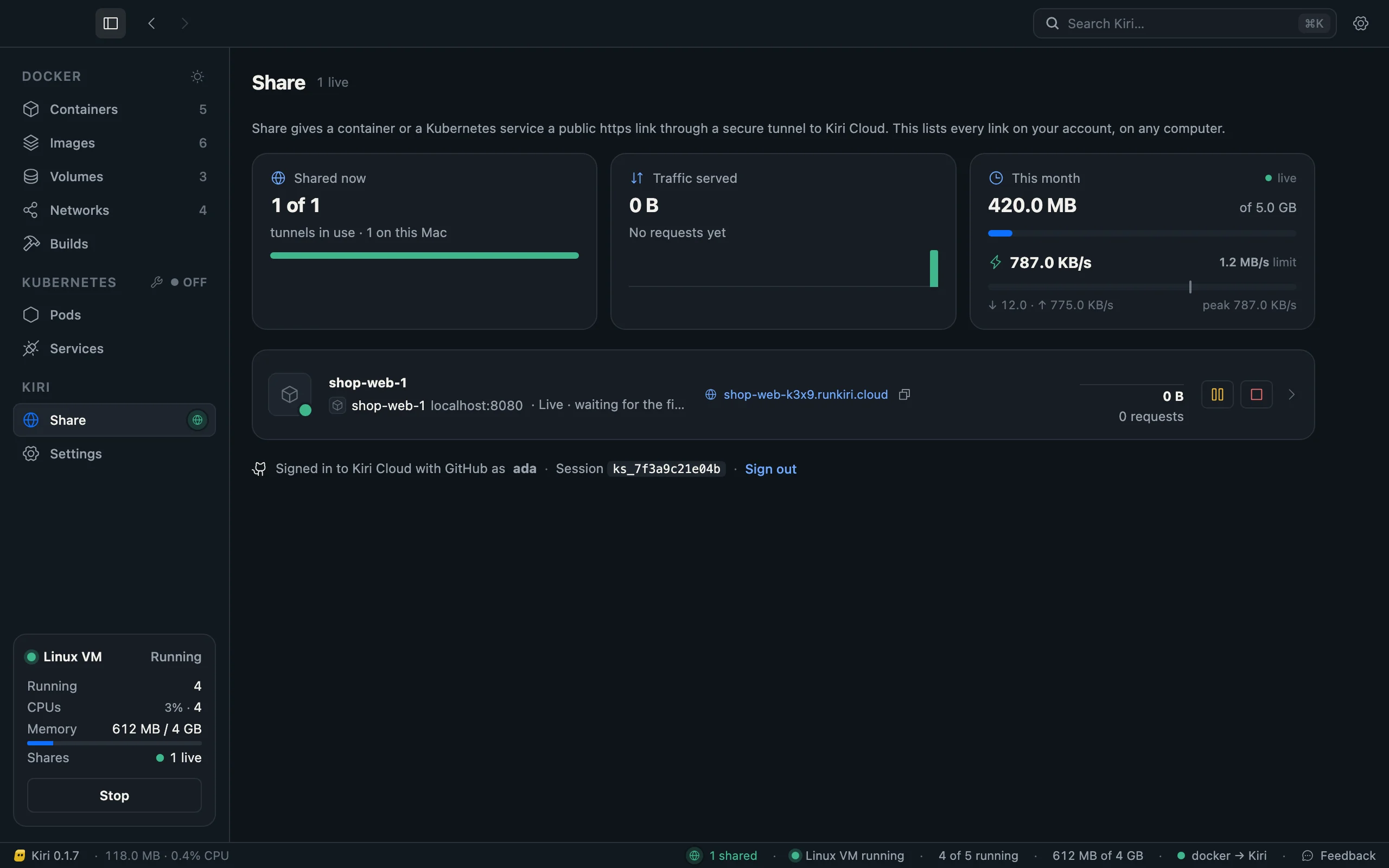
The window’s links stay open while Kiri is running. When you’re signed in, the Share view also lists links from kiri share on this computer (tagged CLI) and, under External, links running on your other computers on the same account. You can disconnect those from here too.
Share from a terminal
kiri share takes a port, a host:port, or the name of a running Kiri container with a published port (its lowest published TCP port is used). For a port, kiri PORT is the short form.
$ kiri 8080

  ◆ Kiri Share  connecting to edge.runkiri.com…
  ●  linked   localhost:8080
  ●  live     https://web-4k2x.runkiri.cloud
              no speed limit · 4.8 GB left this month

  Requests show up below. Press Ctrl+C to stop sharing.

  14:02:11  GET     200  /                                          18 ms     1.2 KB
  14:02:11  GET     200  /assets/app.js                             9 ms    48.3 KB
Every request shows as a line: time, method, status, path, how long it took and the size of the answer. Press Ctrl+C to stop sharing. While kiri share runs, it writes its traffic counts to ~/.kiri/shares/ so the window can show them.
| Command | What it does |
|---|---|
kiri share PORT|HOST:PORT|CONTAINER |
Shares it at an address the edge picks. |
kiri PORT [NAME] |
The same for a port. |
kiri share … --name NAME (or a second word) |
Asks for NAME.runkiri.cloud. |
kiri share … --no-reserve |
Uses the name only as the start of a random address, without reserving it. |
kiri share … --json |
Prints each event as a line of JSON (connecting, live, request, notice, reconnecting, ended), for programs that run a share. |
kiri share login, logout |
Signs in with GitHub, or out. |
kiri share status [--json] |
Your account, how many links your plan allows at once, its speed limit and what you’ve used this month. |
kiri share reserve NAME |
Keeps NAME.runkiri.cloud for you. |
kiri share names |
Your reserved names, and which are live. |
kiri share release NAME |
Gives a reserved name up. |
kiri share works on a Mac, on Linux and on Windows. On Windows it takes a port or host:port, not a container name; share a container from the window there.
Names
Without a name, the edge picks the address, starting with the container’s name when you share a container. With a name, as in kiri 3000 demo or --name demo:
- a name you’ve reserved gives exactly
demo.runkiri.cloud; - a name that’s free, while your plan has a reserved-name slot left, is reserved for you first and then used, so it stays yours across restarts;
- otherwise the address gets a random ending after the name.
kiri share names shows how many of your plan’s reserved names you’ve used.
Limits
Your plan sets how many links can be open at once across all your computers, a speed limit and a monthly transfer allowance. kiri share status and the Share view’s This month show them, and a share prints them when it goes live. When the monthly allowance runs out, the link stops until next month; the window warns when less than 512 MB is left. On some plans, visitors’ browsers see a short Kiri Cloud notice page before your app, and Kiri tells you when that’s the case.
kiri command.© 2026 Kiri · runkiri.com